
Partner & Multi-Org Management Guide
This guide is for users on the Partner tier ($199/mo, 2,000 credits/mo). It covers how to set up and manage multiple client Salesforce orgs from a single Lingora account.
What is the Partner Model?
The Partner model is designed for Salesforce consulting firms and implementation partners who manage translation workflows across multiple client orgs. Instead of maintaining separate Lingora accounts for each client, you manage everything from one place.
Key concepts:
- PartnerAccount — the top-level tenant representing your consulting firm. All billing, credits, and settings live here.
- ManagedOrg — each client Salesforce org you connect to Lingora. A ManagedOrg belongs to exactly one PartnerAccount.
- Shared credit pool — your 2,000 monthly credits are shared across all your managed orgs. You decide how to allocate translation capacity across clients.
- Full data isolation — each client's projects, translation units, Translation Memory, glossaries, and engine configurations are completely isolated. One client's data never appears in another client's workspace.
Partner Dashboard
Click-path: Sidebar > Partner
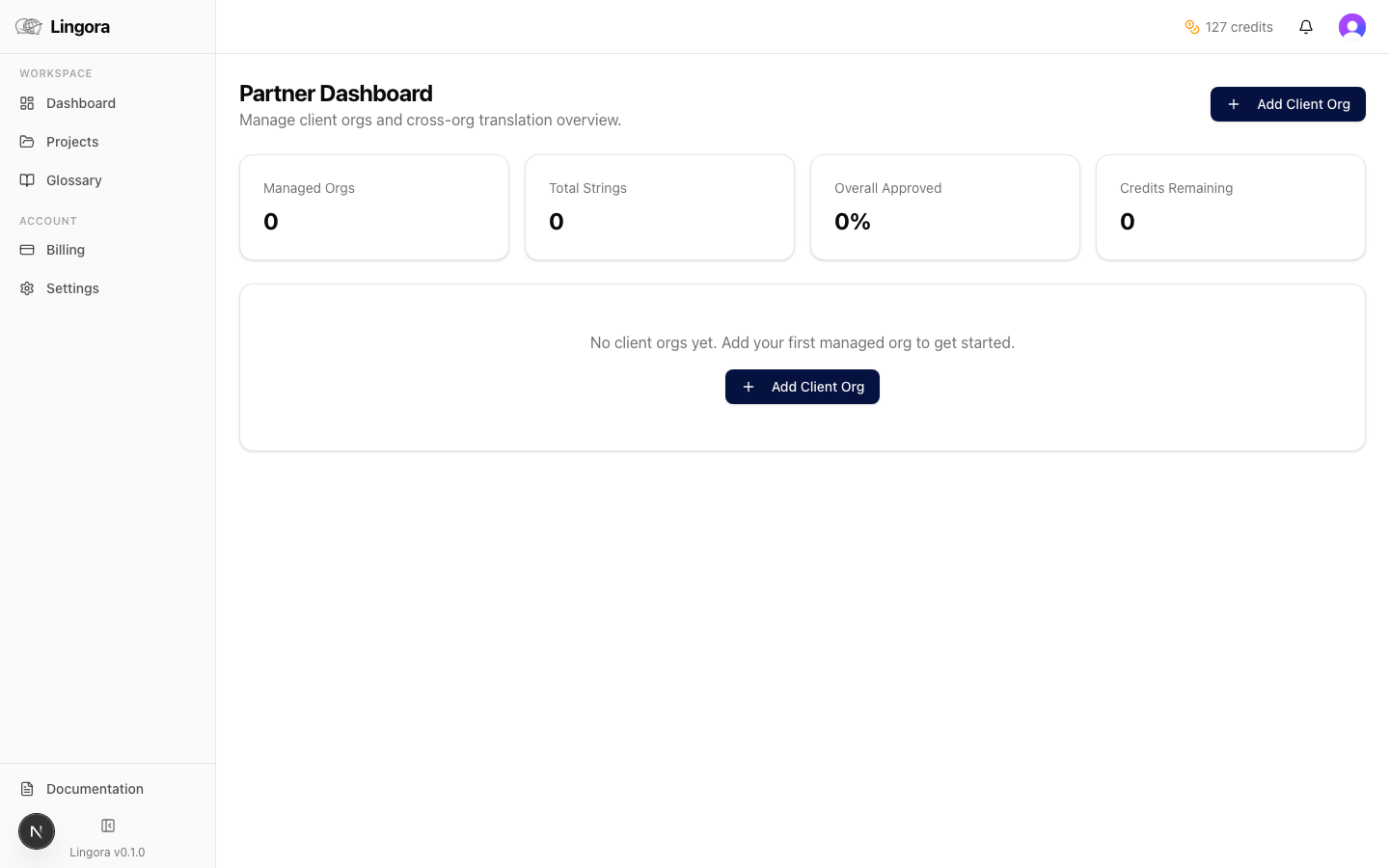
The Partner dashboard is your central command center. It displays a card grid showing all your managed orgs at a glance.
Each org card shows:
| Card Element | Description |
|---|---|
| Org name | The display name you gave the org when adding it |
| Connection status | Active (green), Expired (amber), or Revoked (red) |
| Active project count | Number of open projects scoped to this org |
| Translation progress | Aggregate percentage of approved units across all active projects |
| Reconnect action | Appears on expired orgs — generates a new authorization URL |
Adding a Client Org
Click-path: Partner dashboard > Add Client Org
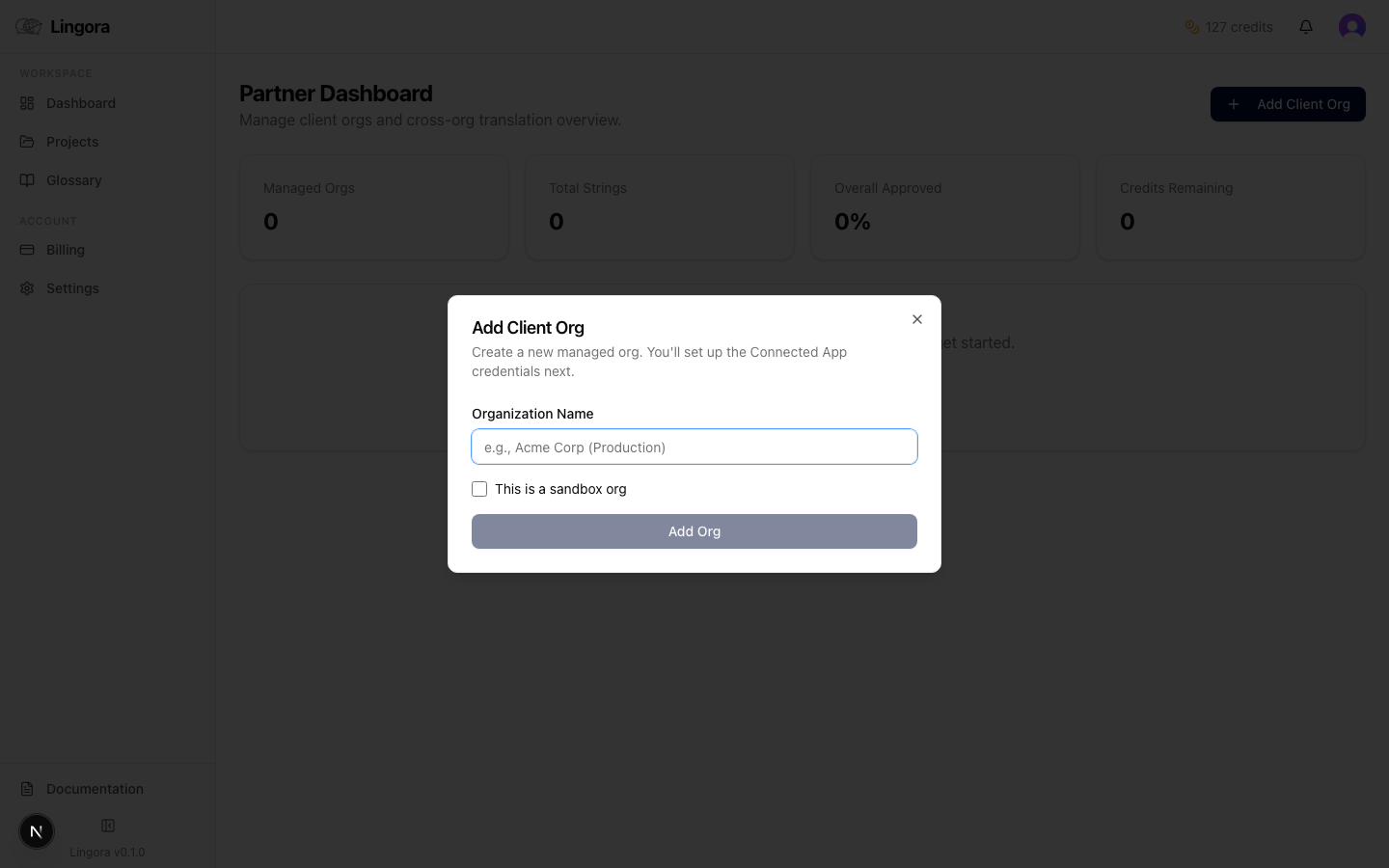
Adding a client org is a delegated authorization flow. You generate an authorization URL and send it to your client's Salesforce administrator — you never need to log into the client's Salesforce yourself.
- Click Add Client Org on the Partner dashboard. Lingora creates a pending ManagedOrg record.
- Lingora generates a one-time authorization URL containing a signed, time-limited state token. This token expires after 72 hours.
- Copy the URL and send it to your client's Salesforce administrator by email or your preferred communication channel.
- The client admin clicks the link, logs into their Salesforce org, and clicks Authorize to grant Lingora access.
- On successful authorization, the ManagedOrg status changes to Active and the org card becomes fully interactive in your dashboard.
- The client org is now ready — you can create projects, retrieve metadata, and manage translations.
Security note: The authorization URL grants Salesforce API access to the connected org. Keep it confidential and treat it like a credential. If the URL expires before the client authorizes it, generate a new one from the org card menu.
Managing a Client Org
Click-path: Partner dashboard > click a managed org card
Clicking any org card opens the managed org detail view, which behaves like a standard Lingora workspace scoped entirely to that client.
From the org detail view you can:
- View all projects scoped to this client org
- Create new projects for this org
- Retrieve metadata from this org's Salesforce instance (Studio & Partner tier feature)
- Open any project to access the translation workspace
- Return to the Partner dashboard using the Back button
All actions performed here — including translation engine calls, credit deductions, and Translation Memory matches — are attributed to this specific org for reporting purposes.
Reconnecting an Expired Org
OAuth tokens can expire naturally or be revoked by the client's Salesforce administrator (for example, if they deauthorize the connected app in Salesforce Setup).
When a token expires or is revoked:
- The org card displays an amber Expired status badge
- Metadata retrieval and deployment are disabled until the org is reconnected
- Existing project data and translations are preserved — nothing is lost
To reconnect:
- Click Reconnect on the expired org card. Lingora generates a new authorization URL.
- Send the new URL to the client's Salesforce administrator.
- The client admin re-authorizes Lingora in their org.
- The org status returns to Active and all functionality is restored.
If the org shows Revoked (red), the connected app may have been deleted in Salesforce Setup. Your client admin may need to re-create the app before re-authorization.
Shared Credit Pool
All managed orgs draw from your PartnerAccount's single credit pool.
| Credit detail | Value |
|---|---|
| Monthly allocation | 2,000 credits |
| Rollover cap | 6,000 credits (unused credits roll over up to this cap) |
| Deduction scope | Per translation unit, attributed to the originating managed org |
| Monitoring | Billing page shows pool balance and per-org consumption |
Credit deductions are logged with the managed org identifier, so you can see exactly how much each client's work costs at reporting time. Monitor your total pool balance and per-org breakdown on the Billing page (Sidebar > Billing).
Only the Lingora LLM engine consumes credits. Translations using third-party engines (DeepL, Lara, Google) via BYOK keys do not consume credits from your pool.
White-Label Exports
Partner tier includes white-label export capability. When you export translated XLIFF or STF files for a client, Lingora removes all Lingora-specific branding from the output:
- No Lingora XML comments
- No
tool-idortool-nameattributes in XLIFF headers
This lets you deliver clean, neutral translation files to clients under your own firm's brand. Clients do not need to know which tool you used to produce the translations.
White-label exports apply automatically on the Partner tier — no additional configuration is required.
Data Isolation
Each managed org's data is completely isolated from every other org under your PartnerAccount. The isolation boundary covers:
| Data type | Isolation |
|---|---|
| Projects and bundles | Per managed org |
| Translation units and candidates | Per managed org |
| Translation Memory (TM) | Per managed org |
| Glossary terms | Per managed org |
| Engine configurations and BYOK keys | Per managed org |
| Salesforce OAuth tokens | Per managed org |
The only shared resource across managed orgs is the credit pool.
This isolation is enforced at the database level. A query against one managed org's data cannot return results from another, and engine calls always use the credentials belonging to the specific org being processed.
Tips
- Build org-specific glossaries first. Before starting translation for a new client, populate that org's glossary with client-specific terminology. This ensures consistency from the first segment and reduces post-editing time.
- Monitor credit consumption regularly. Check the Billing page to track how credits are distributed across orgs and identify any unexpectedly high-volume clients.
- Keep authorization URLs secure. These URLs grant Salesforce API access. Treat them the same as credentials — send them through secure channels and never post them publicly.
- 72-hour token expiry. If a client doesn't authorize within 72 hours, generate a new URL from the org card menu. Expired pending tokens cannot be reused.
- Reconnect proactively. If a client tells you they're doing Salesforce maintenance or deauthorizing connected apps, reconnect immediately after to avoid workflow disruption.
Related Guides
- Getting Started
- Settings & Engine Configuration
- Billing & Credits